 Kukatpally, Hyderabad, Telangana 500037
 +91 9491245812
 Info@s-technologies.in

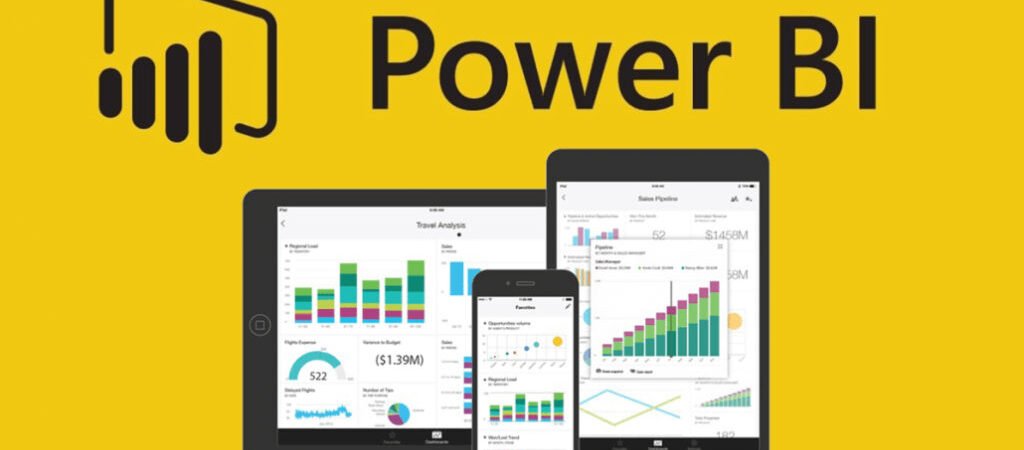
Power BI is a business analytics service by Microsoft that allows users to create interactive visualizations and business intelligence reports using data from various sources. Here are some key features and benefits of Power BI:
Why Choose Our Power BI Course?
1. Business intelligence and analytics
2. Data visualization and reporting
3. Dashboard creation
4. Data exploration and discovery
5. Embedded analytics in applications
6. Self-service analytics
7. Big data analytics
Benefits:
1. Fast and Easy: Create reports and visualizations quickly and easily.
2. Interactive: Interactive reports allow users to explore data in real-time.
3. Cloud-based: Access reports and data from anywhere, at any time.
4. Cost-effective: Reduce costs by leveraging existing data sources and infrastructure.
5. Scalable: Handle large amounts of data and scale as needed.
6. Secure: Enterprise-grade security and compliance.
7. Integrates with Microsoft products: Seamlessly integrates with Microsoft products such as Excel, Azure, and more.
What You can Expect
✅Real-time project-based
✅ Live Online Training
✅ Recordings Available
✅ Practical use cases
✅ Career Guidance
✅ Interview Tips and Tricks
✅ Resume Preparation
✅ Project support
Course Details
Course Duration: [Specify Duration, e.g., 8 weeks]
Format: Online / Offline
Prerequisites: [Specify any prerequisites, e.g., basic computer knowledge]
Certification: [Include details about certification if applicable]
Course Modules
Power Query
Data Transformation, Benefits of Data Transformation
• Shape or Transform Data using Power Query
• Overview of Power Query / Query Editor, Query Editor User Interface.
• The Ribbon (Home, Transform, Add Column, View Tabs)
• The Queries Pane, The Data View / Results Pane, The Query Settings Pane, Formula
Bar
• Data types, Changing the Data type of a Column Filter in Power Query
• Auto Filter / Basic Filtering, Filter a Column using Text Filters, Number Filters &
DateFilters
• Remove Columns / Remove Other Columns, Name / Rename a Column, Reorder
Columns
• Add Column / Custom Column Split
• Columns From Examples, Indexes
• Conditional Columns, Expressions
• Header Row or Use First Row as Headers
• Keep Top Rows, Keep Bottom Rows Keep, Range of Rows
• Query Duplicate, Query Reference
• Keep Duplicates, Keep Errors
• Remove Top Rows, Remove Bottom Rows, Remove Alternative Rows
• Deriving Year, Quarter, Month, Day
• Remove Duplicates, Remove Blank Rows, Remove Errors
• Merge , Append, PIVOT, UNPIVOT, Transpose Columns
• Group Rows / Group By
• Creating Parameters in Power Query
• Linking Parameters to Queries
Power BI Desktop
Basic Report Design
• Power BI Desktop Installation
• Various options in the Top Ribbon
• Data Sources & Visual Types
• Canvas, Visualizations and Fields
• Get Data and Memory Tables
• Format Button and Data Labels
• Visual Interaction, Data Points
• Disabling Visual Interactions
• Edit Interactions – Format Options
• SPOTLIGHT &
• CSV and PDF Exports. Tooltips
Data Modeling:
• Data Modeling Introduction
• Relationship, Need of Relationship
• Relationship Types / Cardinality in General
• One-to-One, One-to-Many (or Many-to-One), Many-to-Many
• Auto Detect the relationship, Create a new relationship, Edit existing relationships
• Make Relationship Active or Inactive
• Delete a relationship
Filter, Slicer & Visual Sync
• Difference between slicer & filter
• Different types of Filters ( Visual, Page & Report level filters)
• Basic Filter, Top N, Advance filtering options
• Slicer Visual : Real-time Usage
• Orientation, Selection Properties
• Single & Multi Select, CTRL Options
• Slicer : Number, Text and Date Data
• Slicer List and Slicer Drop downs
• Visual Sync Limitations with Slicer
• Edit Interaction
• Custom visual (chiclet slicer)
Efficient Ways to format the report
• Distribution Options
• Alignment options
• Arranging the order of visuals
Hierarchies, Drill Down, Drill Thought& Visual Tool Tip
• Creating Hierarchies in Power BI
• Drill Up Buttons and Operations
• Different ways of drilling down
• Formatting the drill-down view in Matrix
• Drill Through use case
• Keep All Filters” Options in Drill Through
• Step-by-step implementation of Drill Through
• Normal Tool tip
• Tool Tip page creation
• Using visual tool
Bookmarks & Button Actions
• Bookmarks: Real-time Usage
• Bookmarks for Visual Filters
• Bookmarks for Page Navigation
• Selection Pane with Bookmarks
• Buttons, Images with Actions
• Buttons, Actions and Text URLs
Visualization Properties
• Stacked Charts and Clustered Charts
• Line Charts, Area Charts, Bar Charts
• 100% Stacked Bar & Column Charts
• Map Visuals: Tree, Filled, Bubble
• Cards, Funnel, Table, Matrix
• Scatter Chart : Play Axis, Labels
• Series Clusters & Selections
• Waterfall Chart
• Conditional Formatting
DAX:
• What is DAX, Calculated Column, and measures?
• DAX Table and Column Name Syntax
• Creating Calculated Columns, Creating Measures & CalculatedTables
• Columns Vs Measures
• DAX Operators
• Types of Operators: Arithmetic, Comparison,
• TextConcatenation and Logical Operators
DAX Function Types:
• Date and Time Functions
• Text Functions
• Logical Functions
• Math & Statistical Functions
• Filter Functions (DAX)
• Table Functions
DAX Functions:
• SUM, SUMX, AVERAGE, etc DAX
• Remove Filters and CALCUALTE
• COUNTROWS, RELATED, DIVIDE
• PARALLELPERIOD, DATEDADD
• CALCULATE & PREVIOUSMONTH
• USERELATIONSHIP, DAX Variables
• CALCULATE Function Conditions
• Filter Context
• All, AllSelected, AllExcept
• IF & Switch Case
• Rankx
• Summarize, Union, Calculate Table
Dataset, Report and Dashboard
• Power BI Cloud Components, Use
• App Work spaces, Report Publish
• Reports & Related Data Sets in the Cloud
• Creating New Reports in Cloud
• Report Publish and Report Uploads
• Dashboards Creation and Usage
• Adding Tiles to Dashboards
• Pining Visuals and Report Pages
• Visual Pin Actions in Dashboards
• LIVE Page Interaction in Dashboard
Dataset settings, Schedule Refresh, and gateway settings
• Important Dataset settings
• Favorite, Insights, Embed Code
• Featured Dashboards and Refresh
• Gateways Configuration, PBI Service
• Gateway Types, Cloud Connections
• Gateway Clusters, Add Data Sources
• Data References: Manual, Automatic
• DataFlow
Report Sharing and Export Options
• Giving access to Workspace
• Sharing the report directly
• Creating the app and giving access to app
• Analyze in
• Connecting to PPT
• Exporting in PDF & PPT
• Embedding the report in website/other applications
• Publishing to web for open access
• RLS Implementation
• Testing the RLS role
Advanced Features
• Paginated Reports
• Incremental Refresh setup
• External Tools and Report Optimization
• Best Practices
• Power
• Q&A Visual
• Power BI Latest Updates
Student can pick any one of the below template for hands on
• Finance Reporting
• HR Reporting
• Sales Report
• Operational
• Vertical Report
Enroll Today
Start your journey to becoming a proficient Python programmer with S-Technologies. Contact us today to enroll in our Power BI course and take the first step towards mastering one of the most versatile and in-demand programming languages.